
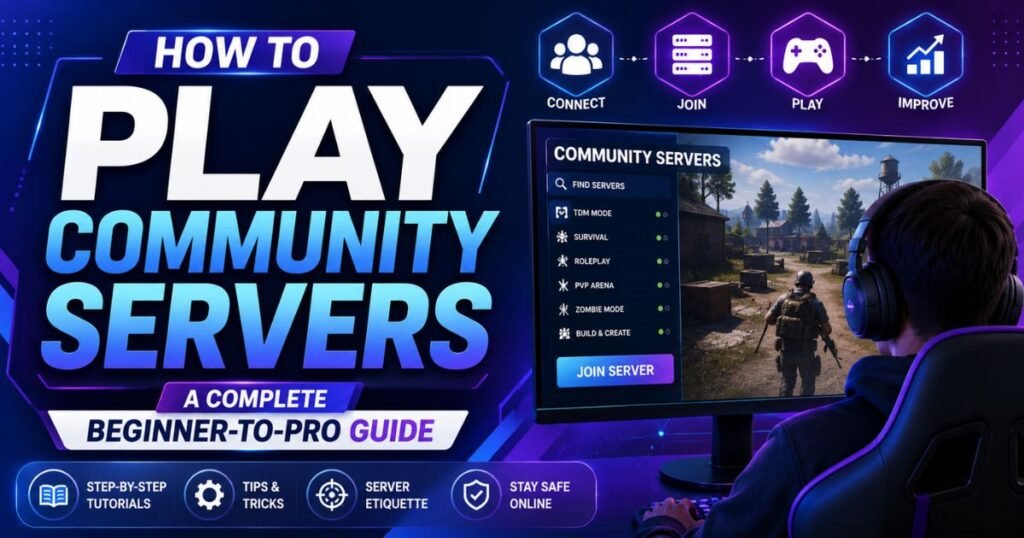
Playing on community servers is easy once you know where to look and what steps to follow. In simple terms, you find a server through a browser or list, copy its IP address or link, add it to your game, and connect. That’s the short answer. But there’s a lot more to know if you want a smooth, safe, and fun experience.
This guide walks you through everything, from finding the right community servers to joining them, staying safe, and fixing common problems. Whether you’re new to multiplayer gaming or you’ve been playing for years and want to sharpen your setup, this article covers it all.
What Are Community Servers?
Community servers are game servers run by regular players, small groups, or fan communities instead of the game’s official company. Anyone with the right software and a bit of technical know-how can set one up and invite others to join.
You’ll find community servers in games like Minecraft, ARK: Survival Evolved, Counter-Strike, Rust, Garry’s Mod, and many multiplayer titles that support custom hosting. These servers often have their own rules, plugins, mods, and communities built around them.
Think of official servers as a hotel chain clean, standard, and predictable. Community servers are more like a friend’s house party. Every one is different, and the vibe depends on who’s hosting.
Why Play on Community Servers Instead of Official Ones
People choose community servers because they offer more variety, custom content, and tighter-knit communities than official game servers usually provide.
Here’s what makes them appealing:
- Custom game modes you won’t find anywhere else, like unique survival rules or roleplay servers.
- Mods and plugins that add new items, mechanics, or entire new ways to play.
- Smaller, friendlier communities where players often know each other.
- Active moderation from admins who care about their specific server’s reputation.
- Free or low-cost access, since many community servers don’t charge to join.
How to Play Community Servers: Step-by-Step
Here is the exact process for how to play community servers in most PC and console games.
- Open your game and go to the multiplayer or online menu.
- Choose “Direct Connect” or “Server Browser” depending on what your game offers.
- Enter the server’s IP address, port, or invite code if you’re connecting directly.
- Or browse the built-in server list and filter by game mode, region, or player count.
- Click connect or join and wait for the game to load the server.
- Read the server rules shown on loading screens or in chat.
- Say hello in chat and start playing.
That’s the general flow. The exact menu names change slightly between games, but the process stays nearly identical.
Example: Joining a Minecraft Community Server
In Minecraft, open the Multiplayer menu, click “Add Server,” paste in the server address (like play.examplecraft.net), name it, and save. Then double-click the server to connect.
Find it more: GoMyFinance com Saving Money: The Honest 2026 Review (and a Real Guide to Saving More)
How to Find Good Community Servers
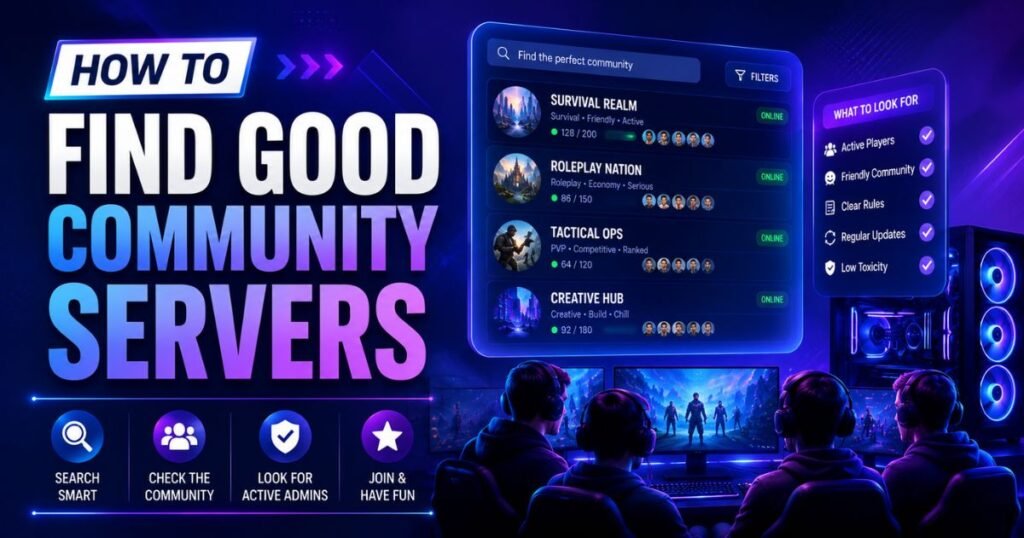
The best way to find good community servers is through in-game server browsers, trusted server listing websites, and community recommendations on platforms like Discord and Reddit.
Try these sources:
- In-game server browser — the safest and most direct method, since it’s built into the game.
- Server list websites — many games have dedicated ranking sites where servers compete for votes.
- Discord communities — search for your game’s official or fan Discord servers; many post active community server links.
- Reddit and forums — subreddits for specific games often pin trusted server lists.
- YouTube and Twitch — content creators often play on and promote community servers they trust.
What to Check Before Joining
- Player count (is it active or empty?)
- Last updated date (abandoned servers often lag or crash)
- Rules and moderation policy
- Reviews or comments from other players
- Whether it requires a mod pack or client-side download
How to Join a Server Using an IP Address
To join using an IP address, copy the server’s address, open your game’s direct connect option, paste the address, and confirm connection.
Steps:
- Copy the IP address (it looks like 192.168.1.1:25565 or a domain like play.servername.com).
- Open your game and find “Direct Connect,” “Connect to IP,” or similar.
- Paste the address into the text field.
- Click connect.
- Wait for the download of any required files, like resource packs or mods.
Tip: Some servers use a port number after the address (like :27015). If the server owner gave you one, don’t skip it the connection may fail without it.
How to Join a Server Using a Server Browser
A server browser lets you search, filter, and click to join community servers directly inside the game without typing an IP address.
Steps:
- Open the multiplayer menu.
- Select “Server Browser” or “Community Servers.”
- Use filters for region, game mode, or ping (lower ping means less lag).
- Click on a server to see details like player count and description.
- Press “Join” or “Connect.”
Server browsers are usually the easiest option for beginners since they show real-time information before you commit to joining.
Community Servers vs Official Servers
| Feature | Community Servers | Official Servers |
| Setup | Run by players or groups | Run by the game company |
| Customization | High mods, plugins, custom rules | Low standard rules only |
| Cost | Usually free | Sometimes included, sometimes paid |
| Moderation | Varies by server admin | Consistent company policy |
| Stability | Can go offline anytime | Generally more stable |
| Community feel | Tight-knit, personal | Larger, more anonymous |
| Risk level | Slightly higher (unofficial) | Lower (verified by developer) |
Neither option is “better” in every case. Official servers suit players who want stability. Community servers suit players who want variety and a closer community.
View More: TechInsiderz com Gadgets: Is It a Reliable Source? An Honest Analysis (2026)
Pros and Cons of Community Servers
Pros:
- Unique mods and custom content
- Friendly, active communities
- Often free to join
- More flexible rules and game modes
- Direct access to admins for support
Cons:
- Can shut down without warning
- Quality and safety vary a lot between servers
- Some require extra downloads or mods
- Moderation quality depends entirely on the admin team
- Fewer guarantees around data privacy or fair play enforcement
Safety Tips Before You Join Any Server
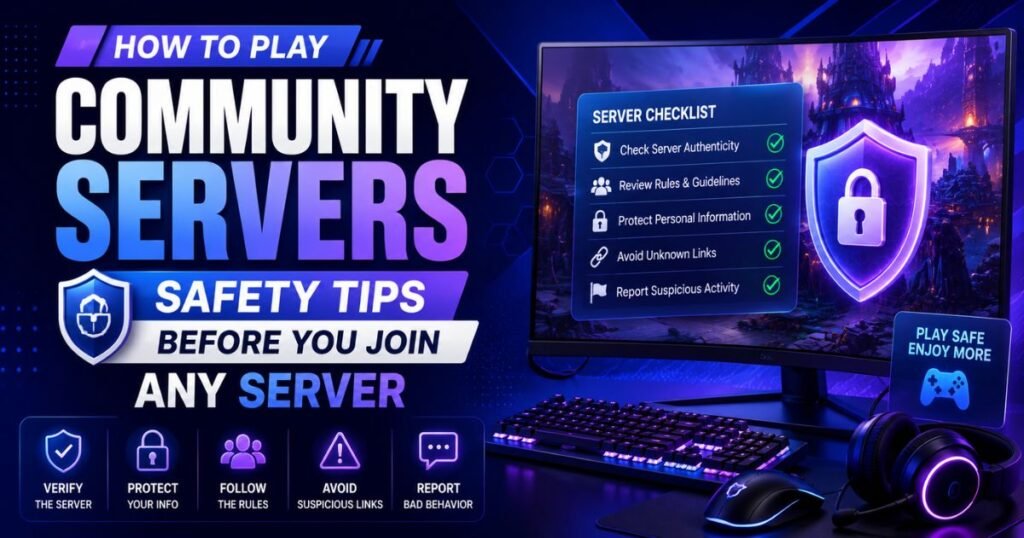
Always check a server’s reputation, avoid downloading unknown files from untrusted links, and never share personal information in server chat.
- Research first. Look up the server name plus “review” before joining.
- Avoid random file downloads from links outside the game’s official mod platform or launcher.
- Use unique passwords for any server account you create never reuse your main gaming password.
- Watch for phishing links disguised as “free items” or “exclusive access.”
- Read the rules so you don’t get banned for something you didn’t know was against policy.
- Keep personal details private, including your real name, location, or financial information.
Common Mistakes to Avoid
- Skipping the rules page and getting banned within minutes.
- Joining overcrowded servers with high ping, leading to laggy, frustrating gameplay.
- Downloading mods from unofficial third-party sites instead of trusted sources like CurseForge or the game’s workshop.
- Ignoring server age and activity some listed servers have been offline for months.
- Not backing up game saves before joining a heavily modded server.
Expert Tips for a Better Experience
- Check ping before committing. Anything under 100ms usually feels smooth; higher can cause noticeable lag.
- Join during peak hours first to get a feel for how active and moderated the community really is.
- Ask questions in chat early. Most admins and regulars are happy to explain rules to newcomers.
- Keep your game updated. Many connection failures happen because the client version doesn’t match the server version.
- Bookmark reliable servers. Good community servers can disappear, so save server details from ones you enjoy in case you need to reconnect later.
Troubleshooting Connection Problems
If you can’t connect to a community server, the most common causes are a version mismatch, an incorrect IP address, or the server being offline.
Try these fixes in order:
- Double-check the IP address and port for typos.
- Update your game to match the server’s required version.
- Restart your router if the connection times out repeatedly.
- Check the server’s status page or Discord to confirm it’s currently online.
- Disable VPNs temporarily, since some servers block VPN connections for security reasons.
- Clear your game cache if a resource pack or mod fails to load properly.
See Details: Mashable Connections Hint: A Complete Guide to Solving the Daily Puzzle 2026
FAQs About community server
What does it mean to play on a community server?
Playing on a community server means connecting to a game server that’s hosted and managed by players or a group, rather than by the official game company.
Is it safe to join community servers?
Most community servers are safe if you research them first, avoid unofficial downloads, and keep personal information private. Risk varies by server, so always check reviews before joining.
Do I need to download anything to join a community server?
Sometimes. Many servers require a resource pack, mod, or plugin file, which usually downloads automatically when you connect. Only download extra files from trusted, official sources.
How do I find the IP address of a community server?
You can find server IP addresses on the game’s official server browser, dedicated server listing websites, or through Discord and community forums for that game.
Why can’t I connect to a community server?
Common reasons include a version mismatch between your game and the server, a typo in the IP address, or the server being temporarily offline.
Are community servers free to play?
Most community servers are free to join. Some accept optional donations for perks, but pay-to-win setups are generally discouraged and flagged by most gaming communities.
Can I get banned from a community server?
Each server sets its own rules, and admins can ban players who break them. Always read the rules before playing to avoid an accidental ban.
What’s the difference between a community server and a private server?
A community server is usually open to the public to join, while a private server restricts access to invited players only, often using a password or whitelist.
How do I know if a community server is active?
Check the current player count in the server browser, look at recent activity in its Discord, or check when the server was last updated.
Can I create my own community server?
Most games with community server support offer hosting guides. You’ll typically need server software, a stable internet connection or hosting provider, and time to manage moderation.
Do community servers work on console as well as PC?
It depends on the game. Some console versions support community servers, while others limit multiplayer to official servers only. Check your specific game’s multiplayer settings to confirm.
Conclusion
Learning how to play community servers really comes down to three things: finding a trustworthy server, connecting the right way, and following its rules once you’re in. Start with your game’s built-in server browser, check reviews before joining anything unfamiliar, and keep your personal information private along the way.
Community servers open the door to some of the most creative and fun experiences in gaming today. With the steps in this guide, you’re ready to find one that fits your style and jump in with confidence.

Team TrandyVilla is the passionate home decor team behind Trandy Villa, where style meets comfort in everyday living. The team loves transforming simple spaces into beautiful, functional homes through smart ideas, budget-friendly hacks, and modern design trends. Their content focuses on helping readers create homes that feel both stylish and personal without spending too much.